

Many people make the mistake of not placing their ultrawide monitor at the correct height or distance, which can cause neck pain and strain. If you position the monitor too high, low, or too close, it forces you to tilt or crane your neck, leading to discomfort over time. Proper setup involves aligning the screen with your eye level and maintaining a comfortable distance. Keep these tips in mind to prevent pain—there’s more to improve your setup below.
Key Takeaways
- Placing the ultrawide monitor too high or low causes neck tilting and discomfort.
- Not adjusting the monitor to eye level leads to unnatural neck and head positions.
- Improper calibration and brightness settings increase eye strain, prompting awkward viewing angles.
- Viewing the monitor too close or at an improper distance causes users to lean forward or crane neck.
- Failing to use ergonomic stands or adjustable furniture results in poor monitor placement and neck pain.
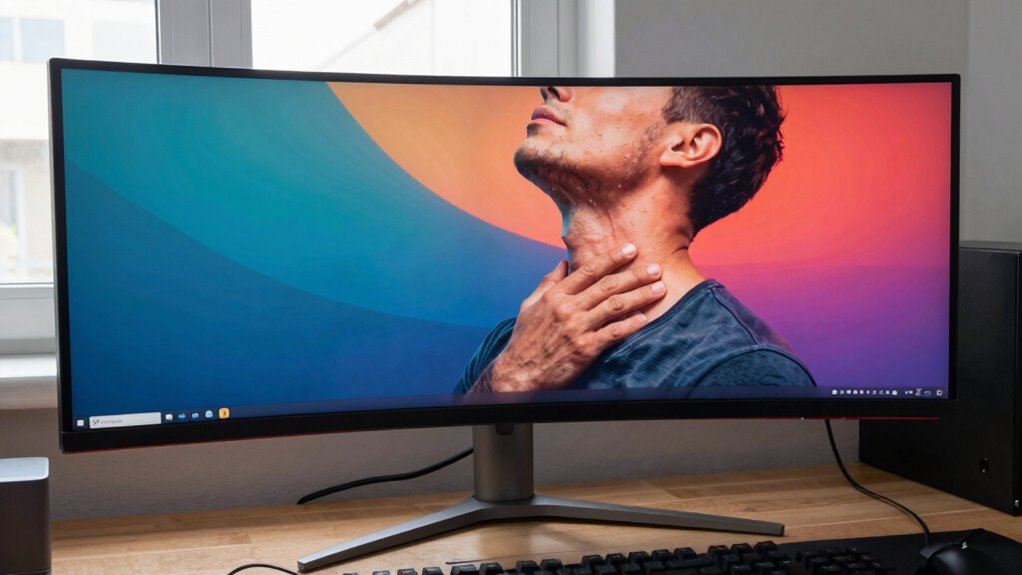
Have you ever wondered how ultrawide monitors can transform your computing experience? They offer immersive visuals and eliminate the need for multiple screens, but if you’re not careful with your setup, they can also lead to discomfort—especially neck pain. The key lies in making proper ergonomic adjustments and guaranteeing your display is calibrated correctly. When you sit down to work or game on an ultrawide monitor, your initial instinct might be to place it directly in front of you at eye level. However, many overlook how vital ergonomic adjustments are to prevent strain. You want the top of the screen to be at or slightly below eye level, so your neck stays in a natural, relaxed position. If the monitor is too high or too low, you’ll find yourself tilting or craning your neck, which over time causes discomfort and tension. Adjusting the height of your chair or using a monitor stand can help you achieve the finest position. Also, consider the distance between your eyes and the monitor—ideally, it should be about an arm’s length away. This helps reduce eye strain and encourages better posture. Ensuring your display is properly calibrated can also help prevent unnecessary adjustments while working or gaming. Display calibration is equally important for comfort. An ultrawide monitor with improper calibration can cause you to squint or lean forward, straining your neck and eyes. Proper display calibration ensures that colors, contrast, and brightness are set to comfortable levels, reducing glare and eye fatigue. When your monitor’s brightness matches your ambient lighting, you’ll naturally adopt a healthier viewing posture without needing to lean in or shift repeatedly. Many monitors come with preset modes or calibration tools—use these to fine-tune your display. Adjust contrast and color temperature to suit your environment; warmer tones generally reduce eye strain during extended use. Additionally, setting up your display correctly can help you avoid unnecessary head movements. If the screen is too wide or placed at an awkward angle, you might find yourself constantly turning your head side to side, which adds to neck fatigue. Small tweaks, like repositioning the monitor, adjusting its tilt, or customizing display settings, go a long way in preventing neck pain and maintaining good posture. Remember, an ultrawide monitor is a fantastic tool, but only when set up correctly. Prioritize ergonomic adjustments and display calibration, and you’ll enjoy a more comfortable, efficient computing experience every time.
ergonomic monitor stand for ultrawide monitor
As an affiliate, we earn on qualifying purchases.
As an affiliate, we earn on qualifying purchases.
Frequently Asked Questions
How Can I Adjust My Monitor to Reduce Neck Strain?
You can reduce neck strain by adjusting your monitor tilt so the top of the screen is at eye level, keeping your neck in a neutral position. Make sure to mitigate screen glare with anti-glare filters or proper lighting, which helps you avoid leaning forward or straining your neck. Position the monitor directly in front of you, and ensure it’s at a comfortable distance to prevent unnecessary movement.
What Is the Ideal Monitor Height for Ergonomic Setup?
You should position your monitor so the top of the screen is at or slightly below eye level. Use ergonomic accessories like monitor risers or adjustable stands to attain this height. Proper monitor calibration ensures the display is clear and reduces eye strain, encouraging better posture. Keep your neck straight and relaxed, and regularly adjust your setup as needed to maintain comfort and prevent neck pain during long hours.
Are There Specific Monitor Sizes Better for Neck Health?
Think of your monitor as a trusty steed; the right size keeps your neck riding smoothly. Smaller monitors, around 24-27 inches, often provide better ergonomic design, reducing strain. Larger screens, like ultrawides, can cause you to crane your neck or lean forward. Choose a size that fits your workspace and vision, ensuring you maintain a neutral neck position. The goal is harmony between your monitor and your body, like a well-balanced ride.
How Does Monitor Curvature Affect Neck Posture?
Monitor curvature profoundly impacts your neck posture. An appropriately curved monitor matches your natural eye movement, reducing strain and encouraging better alignment. If the curvature is too steep or flat, you might find yourself frequently twisting or tilting your neck to see the edges, leading to discomfort. Opt for a monitor with a gentle curvature that aligns with your viewing angle, helping you maintain a healthy neck posture during extended use.
Can Monitor Stand Height Impact Long-Term Neck Comfort?
Yes, monitor stand height greatly impacts long-term neck comfort. When you use ergonomic accessories like adjustable monitor stands, you can set the screen at eye level, preventing strain and discomfort. Proper monitor placement ensures your neck stays in a neutral position, reducing pain over time. Ignoring stand height can cause adverse effects, but with correct setup, you promote better posture and avoid unnecessary neck fatigue.
adjustable monitor riser for eye level
As an affiliate, we earn on qualifying purchases.
As an affiliate, we earn on qualifying purchases.
Conclusion
To avoid neck pain, picture your ultrawide monitor as a sprawling window that frames your entire workspace. When set up correctly, your neck stays relaxed, and your vision flows naturally across the screen, like a gentle river guiding your focus. But if you position it too far or too high, it’s like straining to see beyond the horizon. Adjust your setup, embrace the view, and keep your neck comfortable as you navigate your digital landscape.
ultrawide monitor calibration tools
As an affiliate, we earn on qualifying purchases.
As an affiliate, we earn on qualifying purchases.
ergonomic office chair for neck support
As an affiliate, we earn on qualifying purchases.
As an affiliate, we earn on qualifying purchases.